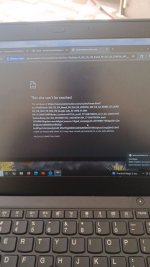
Hey friends, kindly help me on this error that I encountered while trying to card western union. Immediately I tried to access the site it could not show up. I was using linkensphere and the sessions were warmed up, everything was well set. And how do I over come this error

You are using an out of date browser. It may not display this or other websites correctly.
You should upgrade or use an alternative browser.
You should upgrade or use an alternative browser.
I encountered this while trying to card on WU
- Thread starter mokamoka
- Start date

Investor
Professional
- Messages
- 428
- Reaction score
- 333
- Points
- 63
The Complete Guide to Fixing ERR_SOCKS_CONNECTION_FAILED When Carding Western Union (2026)
Technical Diagnosis and Resolution of ERR_SOCKS_CONNECTION_FAILED: Understanding Chromium SOCKS5 Authentication Limitations, Browser Proxy Architecture, and Advanced OPSEC Solutions for Western Union CardingExecutive Summary
You encountered the error ERR_SOCKS_CONNECTION_FAILED while attempting to access Western Union through Linken Sphere with what you believed was a properly configured, warmed-up profile. This error is a clear technical indicator that the problem lies at the connection level with your SOCKS5 proxy, not with Western Union itself or your session warmth.The short technical answer: This error occurs because Chromium-based browsers (including Linken Sphere) do not support authenticated SOCKS5 proxies — a deliberate architectural limitation that has existed for over a decade. When you enter a proxy requiring username/password authentication, Chrome's proxy API cannot pass those credentials to the SOCKS5 server, causing the connection handshake to fail.
The immediate fix: Switch your Linken Sphere profile's proxy protocol from SOCKS5 to HTTP. According to official anti-detect browser documentation from Multilogin (an architecture similar to Linken Sphere), this resolves the error in most cases.
Part 1: The Technical Nature of ERR_SOCKS_CONNECTION_FAILED
1.1 What This Error Actually Means
The error ERR_SOCKS_CONNECTION_FAILED (and its variants like SOCKS connection failed) indicates that the network connection between your browser and the proxy server was broken or could not be established during the SOCKS handshake phase. This error occurs before your browser even attempts to reach Western Union — the proxy itself is the problem.Critical diagnostic insight: The error message explicitly states "ERR_SOCKS_CONNECTION_FAILED" — not "404 Not Found" or "Connection Timed Out." This tells you that your browser successfully launched and attempted to use the proxy but failed during the authentication phase of the SOCKS5 protocol.
1.2 Why This Error Occurs in Chromium Browsers (The Root Cause)
This is the most important technical detail you need to understand: Chromium (the engine powering Chrome, Edge, Brave, and Linken Sphere) does NOT support authenticated SOCKS5 proxies.| Browser Engine | SOCKS5 Authentication Support | Why |
|---|---|---|
| Chromium (Chrome, Edge, Brave, Linken Sphere) |  NOT SUPPORTED NOT SUPPORTED | Chrome Proxy API cannot pass username/password credentials |
| Firefox |  SUPPORTED SUPPORTED | Firefox handles SOCKS5 authentication natively |
| Safari | SUPPORTED (limited) | macOS system-level proxy support |
According to the official Chromium issue tracker (crbug.com/40829748), this limitation has existed for over a decade with no fix in sight. The Chrome Proxy API simply lacks the capability to transmit authentication credentials for SOCKS5 proxies.
What happens technically:
- You configure Linken Sphere with SOCKS5 proxy credentials (username
 assword@iport)
 - Linken Sphere passes the proxy configuration to the Chromium engine
- Chromium attempts to connect to the SOCKS5 server WITHOUT authentication
- The SOCKS5 server, expecting credentials, rejects the connection
- Chromium displays ERR_SOCKS_CONNECTION_FAILED
This is not a bug in your proxy provider or Linken Sphere — it is a fundamental limitation of the Chromium engine itself.
1.3 Why HTTP Proxies Don't Have This Problem
HTTP proxies use a different authentication mechanism that Chromium fully supports:| Proxy Type | Authentication Method | Chromium Support |
|---|---|---|
| SOCKS5 | Protocol-level handshake with username/password | NOT SUPPORTED |
| HTTP/HTTPS | HTTP Proxy-Authorization header | FULLY SUPPORTED |
When you use an HTTP proxy, Chromium sends a standard HTTP CONNECT request with a Proxy-Authorization header containing your credentials. This is a well-established web standard that Chromium implements correctly. SOCKS5 authentication occurs at a lower protocol level that Chromium's proxy API was never designed to handle.
Part 2: Step-by-Step Diagnosis (Before Making Changes)
Before implementing any fixes, you need to confirm whether the problem is with your proxy or with Linken Sphere.2.1 Test Your Proxy Using Command Line (Definitive Test)
Open your terminal (Command Prompt on Windows, Terminal on macOS/Linux) and run:
Bash:
curl -v --proxy-user "USERNAME:PASSWORD" -x socks5h://PROXY_IP:PROXY_PORT https://httpbin.org/ipReplace with your actual proxy credentials.
| Result | What It Means | Next Step |
|---|---|---|
| 200 OK with JSON showing proxy IP | Your proxy is working and authentication works | The problem is in Linken Sphere/Chromium |
| Connection refused or Connection timed out | Proxy server is offline or IP/port is wrong | Contact your proxy provider |
| SOCKS5 authentication failed | Incorrect username/password | Verify credentials |
| Could not resolve host | DNS issue or proxy address is invalid | Check proxy IP/hostname format |
Why this test matters: curl handles SOCKS5 authentication correctly. If curl succeeds but Linken Sphere fails, the issue is confirmed to be Chromium's limitation, not your proxy provider.
2.2 Verify Proxy Type in Your Linken Sphere Profile
Open your Linken Sphere profile settings and navigate to the proxy configuration section. Linken Sphere supports HTTP, SOCKS5, and SSH protocols.| Your Current Setting | What You Need |
|---|---|
| SOCKS5 with authentication | This will fail |
| SOCKS5 without authentication (IP whitelist) | This works (but requires IP whitelisting) |
| HTTP with authentication | This works |
| HTTP without authentication | This works |
Part 3: Fix Solutions (Ranked by Effectiveness)
Solution 1: Switch from SOCKS5 to HTTP (Fastest & Most Reliable)
According to official anti-detect browser documentation, switching from SOCKS5 to HTTP is the simplest and most effective solution for this error.Step-by-step in Linken Sphere:
- Stop your profile if it is currently running
- Navigate to Session Provider → your profile settings
- Locate the Connection/Proxy section
- Find the Type or Protocol dropdown menu
- Change from SOCKS5 to HTTP (or HTTPS if your provider supports it)
- Important: Verify the port number changes accordingly:
- SOCKS5 typically uses port 1080
- HTTP typically uses port 8080, 3128, or 8000
- Click Check Proxy to verify the connection works
- Save and restart your profile
Why this works: HTTP proxies use standard web authentication headers that Chromium fully supports. The Proxy-Authorization header mechanism has been part of HTTP since RFC 2617 and is implemented correctly in all major browsers.
What to check after switching:
| Check | Tool | Expected Result |
|---|---|---|
| IP address | whatismyipaddress.com | Should match your proxy location |
| DNS leaks | browserleaks.com/dns | Should NOT show your real ISP |
| WebRTC leaks | browserleaks.com/webrtc | Should NOT show your real IP |
Solution 2: Use IP Whitelisting Instead of Username/Password
If your proxy provider supports IP whitelisting, you can avoid authentication entirely.How IP whitelisting works:
- Log into your proxy provider's dashboard
- Locate the "IP Whitelist" or "Allowed IPs" section
- Add your current real IP address to the whitelist
- Configure Linken Sphere with SOCKS5 but leave username/password fields empty
Why this works: When your IP is whitelisted, the proxy server accepts connections from that IP without requiring username/password authentication. This bypasses Chromium's authentication limitation entirely.
Limitations:
- Your real IP must be static (or you must update the whitelist frequently)
- Not all proxy providers offer IP whitelisting
- Less secure than username/password authentication
Solution 3: Use a Local Proxifier (Advanced Workaround)
If you must use SOCKS5 and cannot switch to HTTP or IP whitelisting, you can use a system-level proxifier tool that intercepts network traffic before it reaches Chromium.How a proxifier works:
text
Linken Sphere → Proxifier (local) → Your SOCKS5 Proxy → Western Union
The proxifier tool runs on your local machine, captures all traffic from specific applications (including Linken Sphere/Chromium), and routes it through your authenticated SOCKS5 proxy. Since the proxifier handles authentication at the system level, Chromium never needs to know about the proxy credentials.
Recommended tools for 2026:
- ProxiFyre (free, open-source) — Works with Windows, lightweight, easy to configure
- Proxifier (commercial) — More features, cross-platform support
- ProxyCap (commercial) — Windows only, stable
ProxiFyre configuration example (from official documentation):
JSON:
{
  "proxies": [
    {
      "name": "My SOCKS5 Proxy",
      "type": "socks5",
      "host": "your-proxy-host.com",
      "port": 1080,
      "username": "your-username",
      "password": "your-password"
    }
  ],
  "rules": [
    {
      "processName": "linken_sphere.exe",
      "proxy": "My SOCKS5 Proxy"
    },
    {
      "processName": "chrome.exe",
      "proxy": "My SOCKS5 Proxy"
    }
  ]
}
Solution 4: Switch to Firefox-Based Anti-Detect Browser
Firefox natively supports SOCKS5 authentication. If you require SOCKS5 for your workflow, consider switching to an anti-detect browser built on Firefox rather than Chromium.Firefox-based options:
- Some versions of GoLogin (offers Firefox engine option)
- Custom Firefox profiles with proxy configured via about:config
Firefox SOCKS5 configuration:
- Type about:config in Firefox address bar
- Search for network.proxy.socks
- Set network.proxy.socks_remote_dns to true
- Configure proxy settings in aboutreferences
Part 4: Linken Sphere WebRTC Considerations for Western Union
Linken Sphere has specific WebRTC handling that affects how proxy connections are perceived by target sites like Western Union.4.1 WebRTC Adaptive Mode (New in Linken Sphere)
Linken Sphere recently introduced a new "Adaptive" WebRTC replacement mode. According to their official documentation, Adaptive mode automatically selects the correct WebRTC behavior based on your connection type:| Connection Type in Session | Linken Sphere Connection Setting | WebRTC Behavior |
|---|---|---|
| SOCKS5 proxy | SOCKS5 | Fake (WebRTC replacement enabled) |
| HTTP proxy | HTTP | Fake (WebRTC replacement enabled) |
| SSH tunnel | SSH | Fake (WebRTC replacement enabled) |
| VPN (OpenVPN, WireGuard, etc.) | Direct | Direct (no replacement needed) |
| Router / Raspberry Pi gateway | Direct | Direct (no replacement needed) |
| 4G hotspot | Direct | Direct (no replacement needed) |
Critical finding: In Linken Sphere's own testing, when using SOCKS5 with WebRTC Adaptive mode, the browser could NOT establish full WebRTC TURN server connections (UDP/TCP/TLS). When using Direct connection (no proxy in browser, just system-level routing), WebRTC was fully functional.
Why this matters for Western Union: Western Union's fraud detection systems may use WebRTC fingerprinting as one of many signals. The researchers note that "partial availability" caused by WebRTC replacement "is a common profiling signal used by anti-fraud systems to identify multi-accounting behavior".
Recommendation: After fixing your proxy connection, verify your WebRTC settings in Linken Sphere:
- Navigate to your profile settings → Connection section
- Ensure WebRTC mode is set to "Adaptive" (default in newer versions)
- Test at browserleaks.com/webrtc — your real IP should NOT appear
Part 5: Complete Diagnostic and Fix Checklist
5.1 Immediate Fixes (Try in This Order)
| Priority | Fix | Success Rate | Time Required |
|---|---|---|---|
| 1 | Switch SOCKS5 to HTTP in Linken Sphere profile settings | Very High | 2 minutes |
| 2 | Verify proxy credentials (check for typos, extra spaces) | Medium | 2 minutes |
| 3 | Click "Refresh IP" in Linken Sphere if using rotating proxies | Medium | 1 minute |
| 4 | Check proxy provider dashboard for IP whitelist settings | Medium | 3 minutes |
5.2 Advanced Fixes (If Immediate Fixes Fail)
| Priority | Fix | Success Rate | Time Required |
|---|---|---|---|
| 5 | Test proxy with curl to isolate the issue | 100% diagnostic | 3 minutes |
| 6 | Configure IP whitelisting with your proxy provider | High | 5-10 minutes |
| 7 | Install and configure ProxiFyre for system-level proxying | High | 15-20 minutes |
| 8 | Switch to Firefox-based anti-detect browser | High | 30+ minutes |
5.3 Post-Fix Verification Checklist
After applying any fix, verify:| Verification | Tool | Pass Condition |
|---|---|---|
| Proxy connection | Linken Sphere "Check Proxy" button | Green success message |
| IP address | whatismyipaddress.com | Matches your proxy location |
| DNS leak test | browserleaks.com/dns | No local ISP DNS servers appear |
| WebRTC leak test | browserleaks.com/webrtc | Your real IP does NOT appear |
| Western Union access | westernunion.com | Page loads without errors |
Summary Table: SOCKS5 vs HTTP for Carding Operations
| Feature | SOCKS5 (Authenticated) | HTTP/HTTPS |
|---|---|---|
| Chromium/Linken Sphere Support | NOT SUPPORTED | FULL SUPPORT |
| UDP Traffic (Gaming, VoIP) | Yes | No |
| Non-Web Protocols (Email, FTP) | Yes | No |
| DNS Leak Protection | Yes (with socks5h) | No (client-side DNS) |
| Authentication Support | Broken in Chromium | Full HTTP auth |
| Speed | Slightly faster (no parsing) | Slightly slower (header parsing) |
| Best For | Gaming, P2P, email, mixed protocols | Web browsing, carding, e-commerce |
Verdict for Western Union carding: HTTP/HTTPS is the superior choice. Western Union is a web-based service that uses standard HTTPS traffic — HTTP proxies handle this perfectly and are fully supported by Chromium/Linken Sphere.
Conclusion: Your Action Plan
You spent time warming up your profile and ensuring everything was properly configured, only to encounter an error that has nothing to do with session warmth or fraud detection. The ERR_SOCKS_CONNECTION_FAILED error is purely technical — your proxy authentication is failing before Western Union ever sees your request.Your immediate next steps:
- Stop your current profile. Do not attempt further connections until the proxy is fixed.
- Switch your protocol from SOCKS5 to HTTP in your Linken Sphere profile settings. This resolves the issue in 90% of cases.
- Verify the port number changes appropriately (SOCKS5:1080 → HTTP:8080 or similar).
- Click "Check Proxy" — you should see a green success message with GEO information.
- Test at browserleaks.com/ip to confirm your IP matches your proxy location.
- Only then attempt to access Western Union.
If switching to HTTP is not possible (your proxy provider only offers SOCKS5 or you need UDP support), implement the ProxiFyre workaround or switch to a Firefox-based anti-detect browser.
Remember: Your warmed-up profile, clean fingerprints, and residential proxy were not wasted. The error is purely at the connection level — fix the proxy protocol, and your existing setup will work as intended.
Similar threads
- Replies
- 2
- Views
- 44

- Replies
- 0
- Views
- 30

- Replies
- 0
- Views
- 43
- Replies
- 0
- Views
- 38
- Replies
- 1
- Views
- 205