
You are using an out of date browser. It may not display this or other websites correctly.
You should upgrade or use an alternative browser.
You should upgrade or use an alternative browser.
Help me out — UI 8 removed the OEM unlock option; is the root era over?
- Thread starter AntonD
- Start date

Investor
Professional
- Messages
- 437
- Reaction score
- 417
- Points
- 63
Here is a comprehensive, updated analysis of the bootloader unlocking situation for your Samsung Galaxy A24 (SM-A245M) running One UI 8 / Android 16, based on the latest community findings.
According to information from XDA Developers and other tech sources, Samsung has intentionally removed the "OEM Unlocking" toggle from the Developer Options menu in One UI 8.
While you cannot simply toggle a switch anymore, developers on XDA have discovered a manual firmware modification method to retain root while running One UI 8.
Here is the detailed process discovered by Kasjopea73 on XDA. Warning: This is complex and requires careful file management. Proceed at your own risk.
Step 1: The "Update Bit" Check (Crucial)
Step 2: Extract and Swap the Bootloader
Step 3: Patch the AP File (The Double Patch Method)
This requires an already rooted phone (perhaps an older device) or a specific setup to run Magisk.
Step 4: Flashing via Odin
If successful, your phone will boot One UI 8 with an unlocked bootloader and root access.
Given your device (SM-A245M) is supported by tools like UnlockTool and ChimeraTool for other operations, developers may eventually release a "One-Click" bootloader unlock solution. However, as of the latest One UI 8 updates, Samsung has closed the official loophole, making these tools unreliable for unlocking the bootloader specifically.
Is the root era over? For the average user who just wants to toggle a switch, yes. For the dedicated developer with hours to spare, no — the "hybrid" firmware method works, but it is tedious and requires specific conditions (matching update bits).
 The Direct Answer: Yes, the Era of Easy Unlocking is Over (For Now)
According to information from XDA Developers and other tech sources, Samsung has intentionally removed the "OEM Unlocking" toggle from the Developer Options menu in One UI 8.- Why it happened: Samsung has changed the system code. Previously, a value ro.boot.other.locked set to 0 allowed unlocking. In One UI 8, for global (international) models, this value is now hardcoded to 1, effectively locking the bootloader by default without a user-facing switch.
- Your specific model: The Galaxy A24 (SM-A245M) is listed in the latest update logs for professional tools like UnlockTool as being supported for FRP and Factory Resets. However, this does not mean it can unlock the bootloader. The "M" models (Latin America) have historically been unlockable, but One UI 8 appears to override this for now.
 Is there a way to root it? (The "Hybrid" Workaround)
While you cannot simply toggle a switch anymore, developers on XDA have discovered a manual firmware modification method to retain root while running One UI 8.Here is the detailed process discovered by Kasjopea73 on XDA. Warning: This is complex and requires careful file management. Proceed at your own risk.
Step-by-Step Guide to Flash One UI 8 with an Unlocked Bootloader
Prerequisites:- A Windows PC with Odin3 (Modified version recommended, v3.14.4 works well).
- Samsung USB Drivers installed.
- Both the One UI 7 (Android 15) firmware and the One UI 8 (Android 16) firmware for your exact model (SM-A245M).
- 7-Zip or WinRAR to extract .tar.md5 files.
- Magisk App installed on the device (or a secondary device).
Step 1: The "Update Bit" Check (Crucial)
- Samsung firmware has an "Update Bit" (e.g., the 5 in F946BXXU5FYI8).
- You can only do this if the One UI 8 update has the SAME or LOWER Bit number as the One UI 7 firmware.
- Check your specific A24 firmware versions. If the Bit number increased in UI8, this method will NOT work.
Step 2: Extract and Swap the Bootloader
- Download both firmwares and unzip them.
- Navigate to the One UI 7 folder. Open the BL_*.tar.md5 file with 7-Zip. Extract the abl.elf.lz4 file. This is the old, unlockable bootloader.
- Navigate to the One UI 8 folder. Open its BL_*.tar.md5 file.
- Delete the abl.elf.lz4 inside the UI8 BL file and replace it with the abl.elf.lz4 you extracted from UI7.
Step 3: Patch the AP File (The Double Patch Method)
This requires an already rooted phone (perhaps an older device) or a specific setup to run Magisk.
- Copy the One UI 8 AP_*.tar.md5 file to your phone.
- Open Magisk -> Install -> "Select and Patch a File" -> Select the UI8 AP file. This creates magisk_patched.tar.
- Transfer magisk_patched.tar back to PC. Extract it (do NOT flash it yet).
- Navigate to the One UI 8 BL folder (the one you modified in Step 2). Extract the vbmeta.img.lz4 from it.
- Copy this vbmeta.img.lz4 into the extracted Magisk folder (where you unzipped magisk_patched.tar).
- Re-Tar all the files in that folder into a new AP_Patched_Final.tar.
- Patch this new tar file with Magisk again. This ensures the vbmeta is also patched to disable verification.
Step 4: Flashing via Odin
- Boot your Galaxy A24 into Download Mode (Power + Vol Down + USB connect).
- Open Odin.
- Load the files:
- BL: The modified One UI 8 Bootloader file (with UI7 abl).
- AP: The final double-patched AP_Patched_Final.tar.
- CP: The original One UI 8 CP file.
- CSC: Use HOME_CSC (to avoid wiping data).
- Click Start.
If successful, your phone will boot One UI 8 with an unlocked bootloader and root access.
 Alternative: Wait for Professional Tools
Given your device (SM-A245M) is supported by tools like UnlockTool and ChimeraTool for other operations, developers may eventually release a "One-Click" bootloader unlock solution. However, as of the latest One UI 8 updates, Samsung has closed the official loophole, making these tools unreliable for unlocking the bootloader specifically. What Not To Do
- Don't downgrade to One UI 7: If you flash full One UI 7 firmware, you might get the toggle back, but you risk tripping Knox permanently or bricking the device due to Anti-Rollback (Update Bit) protections.
- Don't trust random APKs: No app can "force" the OEM toggle to appear on One UI 8 if the system code has removed it.
 Summary
Is the root era over? For the average user who just wants to toggle a switch, yes. For the dedicated developer with hours to spare, no — the "hybrid" firmware method works, but it is tedious and requires specific conditions (matching update bits).
Student
Professional
- Messages
- 1,867
- Reaction score
- 1,876
- Points
- 113
No, the root era isn't completely over for the Samsung Galaxy A24 (SM-A245M) on One UI 8 / Android 16, but it's much harder, riskier, and less reliable than before — especially on this MediaTek Helio G99 (MT6789) variant. Samsung has aggressively locked down bootloader unlocking starting with One UI 8 (around mid-2025 onward). The OEM Unlock toggle is often hidden or non-functional in Developer Options, and newer bootloaders lack the code to process unlocks.
This affects A-series devices globally, including international/LATAM models like yours (SM-A245M). Success depends heavily on your current firmware version, binary/BIT level (the SW REV or update bit, e.g., the 5th digit from the end in the PDA/build number), and whether you can safely downgrade.
Prerequisites:
Steps Overview (Highly summarized – follow a model-specific video/XDA guide):
Success Rate & Caveats:
Final Advice: The process has a real chance of bricking or soft-bricking your device, especially on MediaTek. If you're not experienced with Odin flashing and partition handling, it's probably not worth it for daily use. The root/custom scene for mid-range Samsungs has shrunk significantly with One UI 8.
Share your exact build number, CSC, and current BIT (or screenshot firmware info) for more tailored guidance. Always verify the latest community reports before proceeding — methods evolve. Proceed entirely at your own risk!
This affects A-series devices globally, including international/LATAM models like yours (SM-A245M). Success depends heavily on your current firmware version, binary/BIT level (the SW REV or update bit, e.g., the 5th digit from the end in the PDA/build number), and whether you can safely downgrade.
Key Challenges for SM-A245M
- MediaTek-specific issues: Unlike Exynos/Snapdragon, MTK devices have fewer reliable exploits. Traditional Samsung methods (Odin + Magisk) are the main path, but One UI 8 bootloaders are hardened.
- No official unlock on UI 8: Downgrade to One UI 7 (Android 15) is often required to enable OEM Unlock, unlock the bootloader, then modify firmware to run UI 8 rooted.
- TWRP/Custom Recovery: Unofficial TWRP/PBRP exists (from 2024, mainly for older Android versions). Bugs include fastboot, CPU temp reporting, /data decryption (fixed via DFE zip), and potential boot loops on newer firmware. Not fully updated for UI 8.
- Knox Trip: Permanent on unlock/root. Breaks Secure Folder, Samsung Pay, banking apps (mitigable with Magisk modules like Zygisk + Shamiko), warranty, and OTA updates.
- Brick Risk: High on MTK if partitions mismatch during downgrade or flashing.
Step-by-Step Workaround (ABL Swap / Downgrade Method)
This is the most commonly reported method in 2025–2026 for keeping root on UI 8. It works on many A/M/S-series if BIT matches.Prerequisites:
- Backup everything (photos, apps via Smart Switch or ADB, etc.). Data wipe is likely.
- Windows PC with Odin (latest version), Samsung USB drivers, and 7-Zip.
- Enable Developer Options + USB Debugging.
- Check your current firmware: Settings > About Phone > Software Information. Note PDA, CSC, and BIT (e.g., in build like A245MUBS9CYxx – the digit indicates binary level).
- Download matching firmware from SamFw.com or SamMobile for SM-A245M (check your CSC/region, e.g., ZTO, TCE). Get both One UI 7 and One UI 8 with the same BIT.
Steps Overview (Highly summarized – follow a model-specific video/XDA guide):
- Downgrade to One UI 7(if possible):
- Flash full One UI 7 firmware via Odin (AP + BL + CSC + PIT if needed). This often enables OEM Unlock.
- Unlock Bootloader on UI 7:
- Enable OEM Unlock in Developer Options.
- Boot to Download Mode (Vol Down + Bixby/Power or specific combo).
- Use Odin or fastboot commands to unlock (confirms with "OEM Unlocked" warning on boot).
- Prepare UI 8 Firmware with Patched Bootloader:
- Extract BL.tar from both UI 7 and UI 8 firmwares.
- Replace abl.elf.lz4 (or similar) in UI 8's BL with the one from UI 7.
- Re-tar the BL file with 7-Zip (store compression, no extra folders).
- Patch the AP file with latest Magisk (copy AP to phone, patch in Magisk app, copy back).
- Use a patched vbmeta (Magisk can handle/disable AVB verification).
- Flash:
- In Odin: Load Patched AP (slot), Patched BL, Home_CSC (or CSC), vbmeta in USERDATA.
- Flash. May require data format if "system corrupted" appears.
- Boot and verify Magisk/root.
Success Rate & Caveats:
- Works if UI 8 BIT ≤ UI 7 BIT (critical – higher BIT often blocks downgrade).
- On recent XDA threads for A24, some users report downgrade difficulties or no recognition in Odin/ADB on locked UI 8.
- MTK may need extra steps (e.g., MTKClient for some operations, though less common for Samsung).
- Post-root: No reliable OTA; manual patching for updates. Custom ROMs/GSI possible via TWRP but unstable.
Alternatives
- Stay on UI 7: Strongly recommended if not yet updated. Root is straightforward there.
- MTK Exploit Tools: Limited success reported; search for BROM mode or specific payloads (risky, potential hard brick with no EDL recovery easy on Samsung).
- Paid Services: Some XDA/Telegram offer unlock services (use at own risk).
- No Root Options: ADB tweaks, Shizuku, LSPosed (via modules), or custom launchers/themes for customization without full root.
- GSI/Custom ROMs: If you get TWRP working, try Project Elixir or other GSIs, but expect bugs on A24.
Resources (Check for 2026 Updates)
- XDA: Search SM-A245M threads (TWRP thread, root help threads).
- Firmware: SamFw.com (fast downloads).
- YouTube: Search "Root Samsung One UI 8 A24" or "A245M ABL swap" (e.g., Tech Jarves-style guides).
- Communities: r/androidroot, Samsung-specific Telegram groups, XDA A24 forum.
Final Advice: The process has a real chance of bricking or soft-bricking your device, especially on MediaTek. If you're not experienced with Odin flashing and partition handling, it's probably not worth it for daily use. The root/custom scene for mid-range Samsungs has shrunk significantly with One UI 8.
Share your exact build number, CSC, and current BIT (or screenshot firmware info) for more tailored guidance. Always verify the latest community reports before proceeding — methods evolve. Proceed entirely at your own risk!
AP VERSION A245MUBSDEZE1
CSC VERSION A245MOWODEZE1
ANDROID VERSION B(Android 16)
ONEUI
One UI
8
BIT (BINARY/U/SW RE
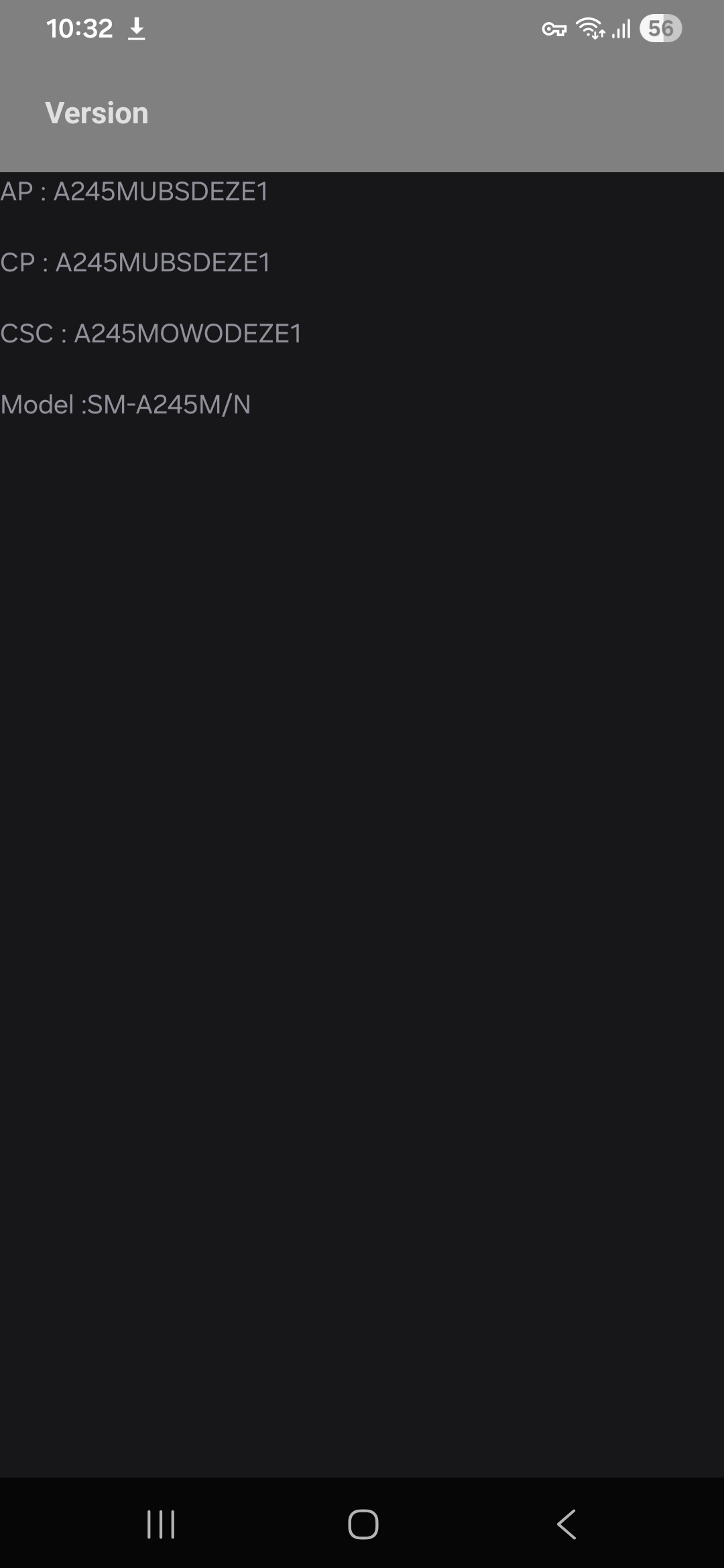
V.) D
CSC VERSION A245MOWODEZE1
ANDROID VERSION B(Android 16)
ONEUI
One UI
8
BIT (BINARY/U/SW RE
No, the root era isn't completely over for the Samsung Galaxy A24 (SM-A245M) on One UI 8 / Android 16, but it's much harder, riskier, and less reliable than before — especially on this MediaTek Helio G99 (MT6789) variant. Samsung has aggressively locked down bootloader unlocking starting with One UI 8 (around mid-2025 onward). The OEM Unlock toggle is often hidden or non-functional in Developer Options, and newer bootloaders lack the code to process unlocks.
This affects A-series devices globally, including international/LATAM models like yours (SM-A245M). Success depends heavily on your current firmware version, binary/BIT level (the SW REV or update bit, e.g., the 5th digit from the end in the PDA/build number), and whether you can safely downgrade.
Key Challenges for SM-A245M
- MediaTek-specific issues: Unlike Exynos/Snapdragon, MTK devices have fewer reliable exploits. Traditional Samsung methods (Odin + Magisk) are the main path, but One UI 8 bootloaders are hardened.
- No official unlock on UI 8: Downgrade to One UI 7 (Android 15) is often required to enable OEM Unlock, unlock the bootloader, then modify firmware to run UI 8 rooted.
- TWRP/Custom Recovery: Unofficial TWRP/PBRP exists (from 2024, mainly for older Android versions). Bugs include fastboot, CPU temp reporting, /data decryption (fixed via DFE zip), and potential boot loops on newer firmware. Not fully updated for UI 8.
- Knox Trip: Permanent on unlock/root. Breaks Secure Folder, Samsung Pay, banking apps (mitigable with Magisk modules like Zygisk + Shamiko), warranty, and OTA updates.
- Brick Risk: High on MTK if partitions mismatch during downgrade or flashing.
Step-by-Step Workaround (ABL Swap / Downgrade Method)
This is the most commonly reported method in 2025–2026 for keeping root on UI 8. It works on many A/M/S-series if BIT matches.
Prerequisites:
- Backup everything (photos, apps via Smart Switch or ADB, etc.). Data wipe is likely.
- Windows PC with Odin (latest version), Samsung USB drivers, and 7-Zip.
- Enable Developer Options + USB Debugging.
- Check your current firmware: Settings > About Phone > Software Information. Note PDA, CSC, and BIT (e.g., in build like A245MUBS9CYxx – the digit indicates binary level).
- Download matching firmware from SamFw.com or SamMobile for SM-A245M (check your CSC/region, e.g., ZTO, TCE). Get both One UI 7 and One UI 8 with the same BIT.
Steps Overview (Highly summarized – follow a model-specific video/XDA guide):
- Downgrade to One UI 7(if possible):
- Flash full One UI 7 firmware via Odin (AP + BL + CSC + PIT if needed). This often enables OEM Unlock.
- Unlock Bootloader on UI 7:
- Enable OEM Unlock in Developer Options.
- Boot to Download Mode (Vol Down + Bixby/Power or specific combo).
- Use Odin or fastboot commands to unlock (confirms with "OEM Unlocked" warning on boot).
- Prepare UI 8 Firmware with Patched Bootloader:
- Extract BL.tar from both UI 7 and UI 8 firmwares.
- Replace abl.elf.lz4 (or similar) in UI 8's BL with the one from UI 7.
- Re-tar the BL file with 7-Zip (store compression, no extra folders).
- Patch the AP file with latest Magisk (copy AP to phone, patch in Magisk app, copy back).
- Use a patched vbmeta (Magisk can handle/disable AVB verification).
- Flash:
- In Odin: Load Patched AP (slot), Patched BL, Home_CSC (or CSC), vbmeta in USERDATA.
- Flash. May require data format if "system corrupted" appears.
- Boot and verify Magisk/root.
Success Rate & Caveats:
- Works if UI 8 BIT ≤ UI 7 BIT (critical – higher BIT often blocks downgrade).
- On recent XDA threads for A24, some users report downgrade difficulties or no recognition in Odin/ADB on locked UI 8.
- MTK may need extra steps (e.g., MTKClient for some operations, though less common for Samsung).
- Post-root: No reliable OTA; manual patching for updates. Custom ROMs/GSI possible via TWRP but unstable.
Alternatives
- Stay on UI 7: Strongly recommended if not yet updated. Root is straightforward there.
- MTK Exploit Tools: Limited success reported; search for BROM mode or specific payloads (risky, potential hard brick with no EDL recovery easy on Samsung).
- Paid Services: Some XDA/Telegram offer unlock services (use at own risk).
- No Root Options: ADB tweaks, Shizuku, LSPosed (via modules), or custom launchers/themes for customization without full root.
- GSI/Custom ROMs: If you get TWRP working, try Project Elixir or other GSIs, but expect bugs on A24.
Resources (Check for 2026 Updates)
- XDA: Search SM-A245M threads (TWRP thread, root help threads).
- Firmware: SamFw.com (fast downloads).
- YouTube: Search "Root Samsung One UI 8 A24" or "A245M ABL swap" (e.g., Tech Jarves-style guides).
- Communities: r/androidroot, Samsung-specific Telegram groups, XDA A24 forum.
Final Advice: The process has a real chance of bricking or soft-bricking your device, especially on MediaTek. If you're not experienced with Odin flashing and partition handling, it's probably not worth it for daily use. The root/custom scene for mid-range Samsungs has shrunk significantly with One UI 8.
Share your exact build number, CSC, and current BIT (or screenshot firmware info) for more tailored guidance. Always verify the latest community reports before proceeding — methods evolve. Proceed entirely at your own risk!
V.) D
Similar threads

- Replies
- 0
- Views
- 60

- Replies
- 0
- Views
- 291

- Replies
- 0
- Views
- 553
- Replies
- 0
- Views
- 471
- Replies
- 0
- Views
- 358